Phillip1 2FA
2FA & OTP
Login & MPIN
QR Code Login
Phillip1 2FA
How do I log in to Phillip1 on the web?
+
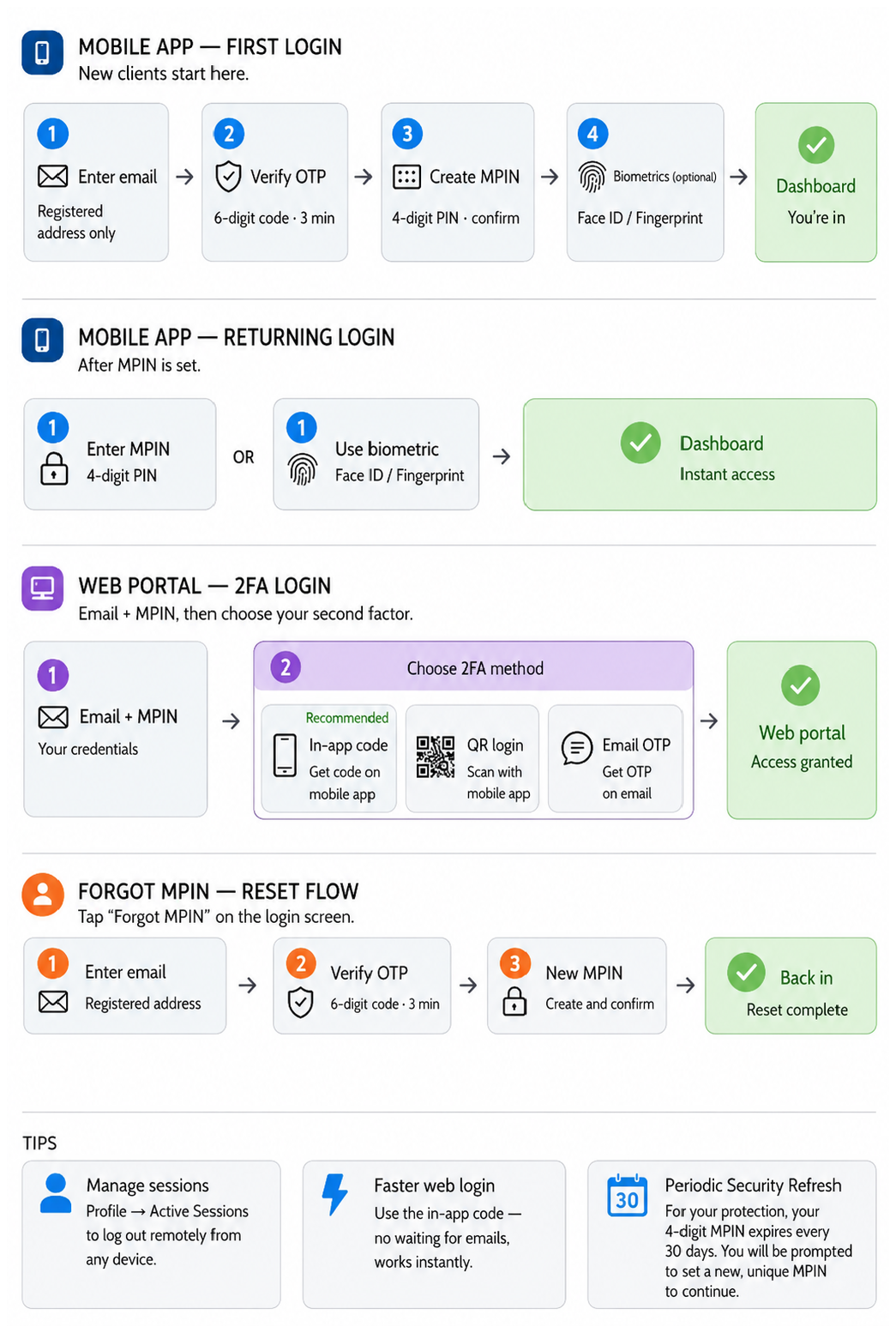
Go to the Phillip1 web portal and enter your registered email address and your 4-digit MPIN. Once credentials are verified, you will be prompted to complete a second factor of authentication (2FA).
Make sure your browser is up to date and cookies are enabled for the best experience.
What is an MPIN and how is it different from a password?
+
Your MPIN is a quick, 4-digit numeric PIN unique to your Phillip1 account. It is used instead of a traditional password for faster, more secure login on both web and mobile. It should be kept confidential and never shared with anyone — including Phillip1 staff.
I forgot my MPIN. How do I reset it?
+
On the login page, click "Set MPIN". You will be directed to verify your identity via your registered email (an OTP will be sent). Once verified, you can create a new MPIN.
Step 1: Click "Set MPIN" Step 2: Enter your email Step 3: Enter email OTP Step 4: Set new MPIN
I have not set my MPIN yet. What happens when I try to log in?
+
If no MPIN has been configured for your account, the system will automatically redirect you to the Set MPIN page after you enter your email. Follow the on-screen instructions to create your MPIN before proceeding.
Why am I being asked to verify my email again during login?
+
This happens when your account requires re-verification — for example, logging in from a new or unrecognized device, or after a suspicious activity alert. An OTP will be sent to your registered email to confirm your identity before proceeding.
I forgot my registered email address. What should I do?
+
Click the "Forgot Email?" link on the login page. You will be guided through an identity verification process using your registered mobile number or PAN details. If you are still unable to recover it, contact Phillip1 support directly.
What is 2FA and why does Phillip1 require it?
+
2FA (Two-Factor Authentication) adds a second layer of security beyond your email and MPIN. Even if your MPIN is compromised, an attacker cannot access your account without passing the second factor. Phillip1 uses 2FA to protect your financial data and trading activity.
What 2FA options are available on Phillip1?
+
After entering your email and MPIN, you can choose one of three methods:

1. In-app code — Generate a 6-digit code from the Phillip1 mobile app and enter it on the web login screen.

2. QR code scan — Scan the QR code shown on screen using the Phillip1 mobile app to log in instantly. No typing needed.

3. Email OTP — A one-time password is sent to your registered email. Use this as a fallback if your phone is unavailable.
My email OTP is not arriving. What should I do?
+
Please check the following before contacting support:
Check spam / junk folder Confirm your registered email Wait up to 2 minutes Request a new OTP
If the issue persists after multiple attempts, please contact Phillip1 support.
How long is the OTP or in-app code valid?
+
Email OTP codes are typically valid for 5–10 minutes. In-app codes refresh automatically every 30 seconds. If your code expires before you can use it, simply request a new one from the login screen.
What happens after I successfully complete 2FA?
+
Once 2FA is verified, the system:
Creates your secure session Registers your browser as trusted Redirects you to the dashboard
You will remain logged in for the duration of your session. Always log out when using shared or public computers.

The QR code method lets you log in to the Phillip1 web portal by scanning a code with your mobile app — no manual code entry needed.

Step-by-step guide
1

Open the Phillip1 mobile app

Make sure you are already logged in to your account on the Phillip1 mobile application (Android or iOS).

2

Go to Menu > Account settings

Tap the hamburger menu icon (☰) or your profile icon in the top corner to access your account settings or options menu.

3

Select "Scan web QR code"

Look for the "Web login" or "QR scanner" option. Tap it to activate your phone's camera and enter scanning mode.

4

Point your camera at the QR code on screen

Hold your phone steady in front of the QR code displayed on your computer monitor until your app detects it automatically.

5

Approve the login on your phone

A confirmation prompt will appear on your mobile screen. Tap "Approve" — your web browser will automatically complete the login.

Common QR code issues
The QR code is not being detected by my phone's camera.
+
Try the following steps:
  • Ensure there is adequate lighting around your monitor
  • Clean the camera lens on your phone
  • Reduce screen glare or adjust monitor brightness
  • Make sure the Phillip1 app is updated to the latest version
  • If the QR code expired, refresh the web login page to generate a new one
The QR code expired before I could scan it.
+
QR codes expire after a short time for security reasons. Simply refresh the web login page to generate a new QR code, then follow the scanning steps again.
Have your phone ready and camera open before loading the QR code to avoid it expiring before you can scan.
I scanned the QR code but the web page did not log me in.
+
Ensure you tapped "Approve" on the confirmation screen in the mobile app after scanning. Also check your internet connection on both devices. If the issue persists, refresh the web page and try again or choose a different 2FA method such as Email OTP.
My account is locked. How do I unlock it?
+
Accounts are locked after multiple consecutive failed login attempts as a security measure. To unlock your account, use the "Set MPIN" option on the login page. You will receive an OTP on your registered email to verify your identity and reset your MPIN.
⚠ If you did not attempt these logins, contact support immediately — your account credentials may have been compromised.
How does browser device registration work?
+
After successfully completing 2FA verification, your current browser is automatically registered as a trusted device. On future logins from the same browser, the 2FA process may be streamlined. Note that clearing your browser's cookies or switching to a different browser will require full 2FA verification again.
I no longer have access to my registered email address.
+
For security reasons, email address changes cannot be completed through the self-service portal alone. Please contact Phillip1 support directly with proof of identity. Our team will guide you through the verified update process.
I want to open a new Phillip1 account. How do I get started?
+
You can open an account fully online through the Phillip1 e-KYC portal. The process takes approximately 10–15 minutes. Please keep the following documents ready:
PAN Card Aadhaar Card Bank account details Signature
Open a new account ↗
How do I update my mobile app to the latest version?
+
Open your device's app store (Google Play Store for Android, App Store for iOS), search for "Phillip1" or "PhillipOne", and tap Update if available. Keeping the app updated ensures you have the latest security patches and features.
Android ↗ iOS ↗

Can't find what you're looking for? Reach out to our support team — we're here to help.

Email support
support@phillipcapital.in
Support hours
Mon – Fri, 9 AM – 5 PM
App version
v1.8.2
Download app
🔔 When contacting support, please have your registered email address and Client ID ready. This helps our team resolve your query faster.

🚨 For urgent issues

If you suspect unauthorized access to your account, please contact us immediately via email and change your MPIN as soon as possible. Do not share your MPIN, OTP, or any login credentials with anyone, including individuals claiming to be Phillip1 staff.